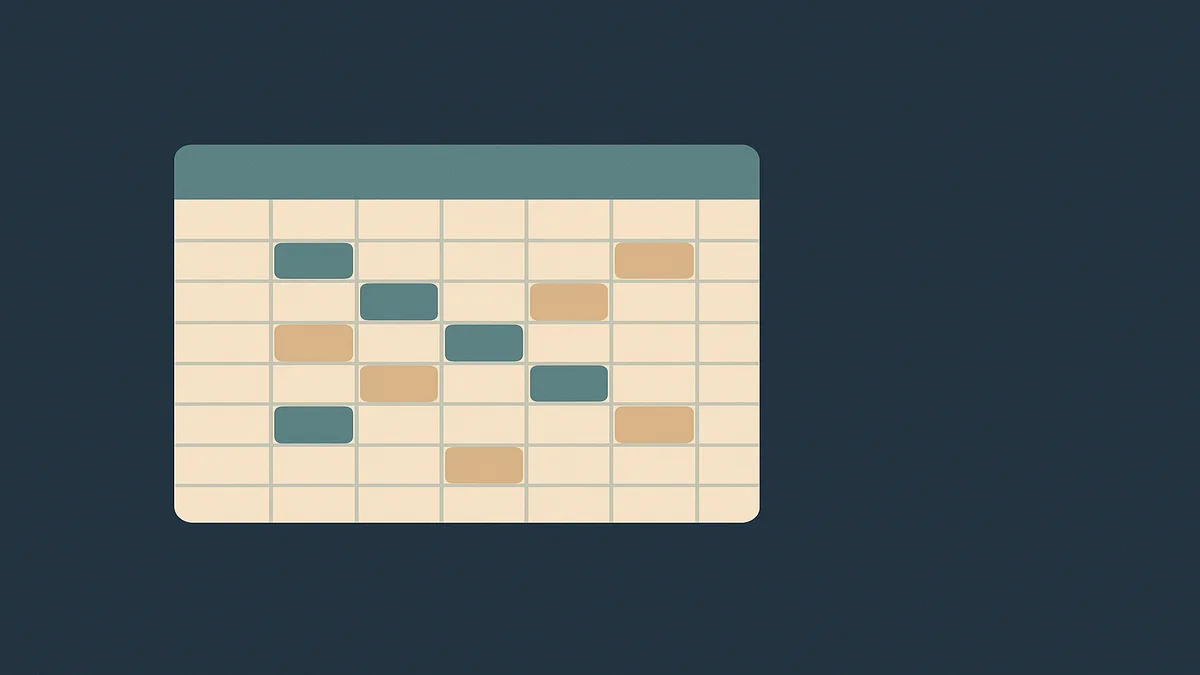
Time Blocking Template
Time Blocking Template: template or resource
Time blocking is the practice of giving every task on your list a scheduled slot on your calendar, and a time blocking template is the reusable structure that makes that fast. Copy the template below into your calendar or planner, fill in the five fields for each block, and you get a day that survives interruptions — which is what makes it work for remote work specifically.

[Primary CTA] Start with tomorrow: block one deep-work slot tonight using the template below, then expand from there. It takes about ten minutes and tells you more about how your week actually runs than a week of guessing.
How to use it
I’ve used time blocking for over ten years of fully remote work, and the version that stuck is deliberately simple. A block that takes real effort to maintain gets abandoned within a week; a block you can set up in seconds survives. Here’s the whole template — it’s just five fields per block:
The template
For each block on your calendar, fill in:
- Block name — what you’ll actually do, stated as a verb (“Draft Q3 outline”), never a category (“Work stuff”).
- Duration — start and end time. Remote days have no natural edges, so blocks are what create them.
- Block type — one of three: Deep (focused solo work), Collab (meetings, calls, syncs), or Admin (email, Slack triage, expense reports, small errands).
- Energy level — High, Medium, or Low. This is the field most people skip, and it’s the one that makes remote time blocking work.
- Shutdown condition — the specific outcome that ends the block (“outline done,” not “worked on it”).
Setup steps
- Pick your tool. A calendar you already check works better than a new app. Google Calendar now lets you select an empty slot and add a task block directly, so the barrier is genuinely low. Paper works too — Cal Newport’s Time-Block Planner is built around exactly this structure (second edition, around $30 at current list price).
- Map your energy, not just your hours. For three days, note when you naturally focus well and when you don’t. Most remote workers find their best deep-work window is earlier than their old commute-era schedule assumed, but verify with your own data rather than assuming.
- Block Deep work first. Deep blocks are the scarcest resource and the first thing meetings will eat. Schedule them before you schedule anything else, ideally in your high-energy window, and mark them so colleagues see you’re busy.
- Batch Collab into bands. Ask for meetings to cluster into one or two windows per day where possible. A 9:00–11:00 collaboration band protects the rest of the day from fragmentation.
- Give Admin a fixed home. One or two 30-minute admin blocks per day. Without a scheduled home, admin expands into every gap and quietly kills deep work.
- End with a shutdown condition. At the end of the day, check each block’s stated outcome against what happened. That check takes two minutes and is what makes the template improve itself.
Why the energy field matters remotely
Task switching carries a measurable cost — research summarized by the American Psychological Association shows switching between tasks eats into performance, and studies of “attention residue” (notably by researcher Sophie Leroy) show that part of your attention stays stuck on the previous task after you switch. Remote work multiplies this because Slack, email, and household interruptions have no office-based natural brake. Sorting blocks by energy type means your High-energy hours go to Deep work, and your post-lunch dip gets Admin instead of the report that keeps stalling.
Worked example
Here’s the template filled in for one remote-work day. This is illustrative, not a claim about my schedule — swap the tasks for yours:
| Time | Block name | Type | Energy | Shutdown condition | |—|—|—|—|—| | 8:30–10:30 | Draft client proposal outline | Deep | High | Full outline written | | 10:30–10:45 | Break / walk | — | — | Away from the desk | | 10:45–12:00 | Collab band: standup + 1:1 | Collab | Medium | Notes captured in task tool | | 12:00–13:00 | Lunch | — | — | — | | 13:00–13:30 | Email + Slack triage | Admin | Low | Inbox at zero triage | | 13:30–15:30 | Revise proposal draft | Deep | Medium | Second draft complete | | 15:30–16:00 | Admin: expenses, small tasks | Admin | Low | Two items cleared | | 16:00–16:30 | Plan tomorrow’s blocks | Admin | Low | Tomorrow fully blocked |
Notice three things. The Deep blocks sit in this worker’s two best windows. Collab is concentrated in one band instead of scattered. And the final 30-minute block plans tomorrow — that’s the habit that keeps the system running past week two.
How to customize it
The five fields stay the same; what changes is how you weight the day. Three remote-work variants I’ve seen hold up:
Use-case variants
- The parent-with-school-hours variant. If your day has a hard edge at 15:00, use fewer, longer Deep blocks (one 90–120 minute block beats two 60s) and move all Admin after the edge. Shutdown conditions matter most here — “work until I run out of time” fails when time is fixed.
- The timezone-spread variant. If your team spans coasts or continents, put Collab in the overlap window and defend it ruthlessly, then schedule Deep work in your local off-overlap hours. One band, clearly marked, is easier for teammates to respect than scattered calls.
- The meeting-heavy variant. If Collab dominates your calendar, start smaller: block two Deep slots per week, not per day. Growing from what your calendar actually allows beats installing an ideal schedule you’ll abandon.
Matching it to your week
Daily blocks are only half the system. Once a week, review which blocks actually happened, which got displaced, and what that tells you — a short repeatable review catches drift that daily blocking hides. I keep this separate from the daily template because they answer different questions: the daily template runs the day, the review tunes the week.
Common mistakes
Time blocking fails in predictable ways. Each of these is fixable with a small change:
What to change or avoid
- Blocking only tasks, not energy. A schedule that puts your hardest work in your low-energy window is technically complete and practically useless. Use the Energy field.
- No buffer blocks. Interruptions are a feature of remote work, not a bug. Leave 15–30 minutes of unallocated space between blocks so one overrun doesn’t cascade through the day.
- Over-precision. Blocking to 15-minute increments turns planning into a second job. Half-hour blocks are usually the right resolution.
- Treating the template as law. If a Deep block gets interrupted, you reschedule it — same day if possible. Abandoning the block because it “didn’t work” is the failure mode; adjusting it is the system working.
- Skipping the shutdown check. The two-minute end-of-day review is what makes the next day’s plan better. Without it you’re re-guessing every morning.
One caution
Time blocking won’t fix an overloaded task list — it will just make the overload visible on your calendar. If your blocks never fit, the honest move is deciding what doesn’t get done, not compressing everything. That’s a prioritization question more than a scheduling one: rank tasks by impact and urgency before they reach the calendar, cut or defer the bottom of the list, and only then block what survives. Tools like a weekly review help here too, because a backlog you never re-examine grows until no schedule can absorb it.
Related tools and guides
If you are building this into a wider system, the rest of my time management guides cover the methods that feed a good block schedule.
Blocking time only works when the tasks deserve the space – the how to prioritize tasks guide helps you decide what goes in first.
Pair the template with my weekly review template to correct the plan every week instead of every quarter. You don’t need special software — the template above runs on any calendar. That said, a few tools reduce friction, with current list prices as of writing:
- Google Calendar. Free with a personal account. As of late 2025, you can select an empty slot and add a task block directly, which makes the template above near-effortless. Its Time Insights feature (meeting-time breakdowns) is available only on eligible paid Google Workspace accounts, not personal calendars.
- Reclaim.ai. Auto-schedules tasks and habits around your existing meetings and moves them when conflicts arise. It has a free Lite plan; paid tiers run roughly $10–$22 per seat per month at current list pricing.
- Cal Newport’s Time-Block Planner. A paper option (second edition, around $30 at list price) built exactly on this method, if screens are part of your problem.
For the surrounding system on this site, my overview of time management covers where scheduling fits among the other levers, and my weekly review template is the companion piece for tuning your blocks week to week.
[Secondary CTA] Before your next planning session, run one weekly review against this week’s blocks — it’s the fastest way to find out which parts of this template are working and which need adjusting.
Frequently asked questions
What should I know about time blocking template?
That a template is a structure, not a schedule. The five fields — name, duration, type, energy level, shutdown condition — are the reusable part; your calendar, your energy pattern, and your team’s meeting rhythm are the variable parts. Expect the f

How do I choose the right time blocking template?
Pick the template whose fields match the decisions you actually make. If you work alone with a predictable day, five fields is plenty and a simple calendar works. If your calendar is meeting-heavy, choose a template with an explicit Collab band. If your energy swings hard, the energy field is non-negotiable. And if a template needs more than five minutes a day to maintain, it’s the wrong template for you.
What are the common mistakes with time blocking template?
The big four: blocking tasks without matching them to your energy, leaving no buffer so interruptions cascade, planning in over-precise increments, and skipping the end-of-day check that makes the next day smarter. Underneath all four sits one bigger mistake — using the template to force an overloaded task list to fit instead of deciding what genuinely doesn’t get done.