Laptop Ergonomics
What is laptop ergonomics?
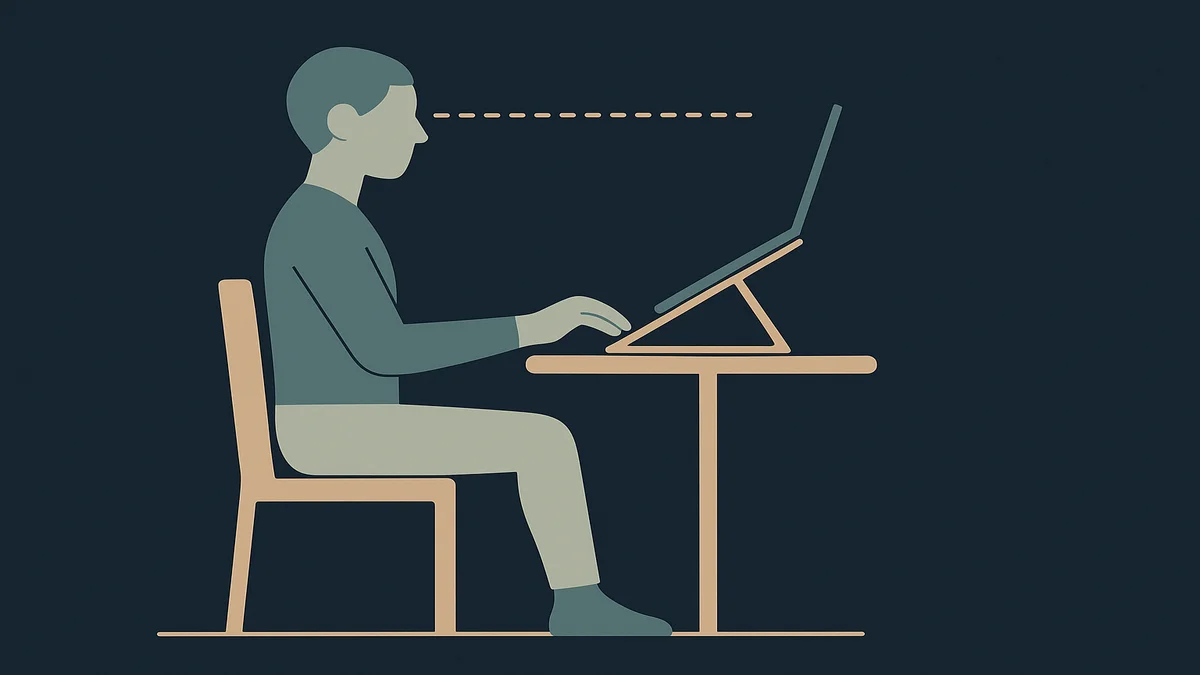
Laptop ergonomics is arranging the workspace around the machine’s design conflict: screen and keyboard move together, so a flat laptop cannot place both right. The rule is screen at eye level, keyboard and mouse at elbow height, wrists and neck neutral. Full-time laptop users need a riser, a separate keyboard, and a mouse.

The core problem is built into the device. A laptop that sits on a desk puts the screen low (your neck bends to meet it) or, if you push it away, the keyboard far (your shoulders and arms reach). Raise it to your eyes and the keyboard rises too, out of neutral wrist position. Every laptop ergonomics setup is an answer to that trade-off, and the answer always costs one extra component: either the screen comes up or the keyboard comes down. OSHA’s computer workstation guidance defines the neutral targets the setup aims for: top of monitor at or just below eye level, elbows close to the body and supported, wrists and hands in line with forearms, feet flat on the floor, lower back supported.
This guide covers what a working setup looks like, the laptop-specific compromises, and the failure modes that show up months in. For the machine itself (weight, ports, screen size trade-offs), the best laptops for remote work that can handle zoom tabs and chaos guide covers the buying decision, and the remote work technology hub holds the wider stack.
The conflict also explains why laptop ergonomics advice fails when it copies desktop advice. Desktop setups start from a monitor that is already at the right height and a keyboard that is already separate; the laptop starts from neither. So the sequence of fixes matters: the screen raise and the keyboard separation are one decision made together, not two purchases to schedule apart, because each only works with the other. Workers who buy the riser first and postpone the keyboard (or the reverse) end up with a setup that moved the strain rather than removed it, which is the most common way this category disappoints.
Why laptop ergonomics matters for remote workers
What a laptop does to a body over a full workday
A laptop is fine in short doses. The problems compound at the eight-hour scale remote workers run, because the machine’s compromises load specific structures.
- Neck and upper back. The screen sits 15 to 25 degrees below eye level in a flat setup, and the head, which weighs roughly as much as a bowling ball, rides forward and down to meet it for hours. That is the posture people call tech neck, and it is a positioning problem before it is a strength problem.
- Wrists and forearms. Built-in laptop keyboards force a compromise: reach forward and the wrists extend upward over the front edge; perch the machine close and the elbows lose support. Either way the wrist bends away from the neutral line OSHA’s guidance describes.
- Shoulders. No separate keyboard means arms hover forward with no desk-edge rest, and shoulders creep up toward the ears to hold position.
- Lower back. Sofa and bed use rounds the lumbar support away entirely; a kitchen table perched on a dining chair does the same more slowly.
Two honest qualifications. First, discomfort is individual: the same setup that bothers one person’s neck spares another’s, and what follows is the consensus neutral-posture guidance, not a diagnosis. Second, persistent pain is a clinician’s territory: a better setup is the daily-habit fix, not a treatment, and symptoms that do not improve with better positioning belong with a professional. OSHA’s ergonomics guidance frames these as risk-reduction measures, not cures, and that framing is the right one to keep.
The remote-work specifics that make it worse at home
Three things about home working turn these compromises into complaints.
- Ad-hoc surfaces. The office supplied the desk, the monitor, and the chair; home supplies the kitchen table, the sofa, and the dining chair, none of which match.
- Longer unbroken sessions. Home days often have no natural posture reset: no walk to a meeting room, no standing conversation. The same position holds for hours longer.
- Laptop-first budgets. Remote workers buy the laptop as the work machine and treat the ergonomics as an upgrade for later. Later usually arrives with the first persistent ache.
One more layer matters for remote workers: the laptop’s own hardware choices are ergonomic choices made at purchase time. Weight decides what you carry daily (and shoulder loads feed the same neck structures). Keyboard depth and layout decide how close the external-keyboard transition feels. Screen size and resolution decide how far away the raised screen can sit while staying readable. Port placement decides whether the dock cable reaches. None of these override the placement rules above, but buying a machine that fights them is a slow tax, which is why the buying guide linked below covers these properties alongside performance.
How to apply it
The baseline setup that fixes the built-in conflict
The standard answer costs less than most people expect and covers the overwhelming majority of cases:
- Raise the screen. A laptop stand or riser (or a stack of stable books as the zero-budget version) puts the top of the screen at or just below eye level, about an arm’s length away.
- External keyboard and mouse. At elbow height, on the desk surface, with wrists in line with forearms. This is the component people skip and the reason risers alone do not work: a raised screen with the built-in keyboard solves the neck and creates the wrists.
- Chair and feet. Feet flat on the floor or a footrest, lower back supported, elbows roughly at desk height and close to the body.
- Dock or hub. One cable to connect and disconnect turns the fixed setup into a daily ritual rather than a temptation to drift back to the couch.
That is the whole baseline: riser, keyboard, mouse, chair check. Most of it migrates in a laptop bag, and the pieces hold their value across machines.
A note on the standing-desk trend, since it reaches laptop users by default. Standing is not automatically the neutral target: the same rules apply in both positions, and a standing laptop setup without a riser is a neck bend at a different altitude. The useful version pairs a sit-stand surface with the same riser, keyboard, and mouse, so switching positions changes nothing about the posture rules. Workers who alternate positions with correct placement in each report the best day-to-day results, and the habit section below covers the interval that matters more than the furniture.
The laptop-specific compromises (the honest versions)
Real spaces and budgets force trade-offs. The common ones, ranked from best compromise to worst:
- One screen, laptop as secondary monitor. An external monitor at eye level with the laptop beside it (closed or as a side display) is the strongest setup, because the monitor carries the height requirement and the laptop stops being a posture device.
- Standing desk intervals. Alternating sit and stand helps most people’s backs, but only if the standing position meets the same neutral rules: screen at eye level, keyboard at elbow height. Standing while hunched over a low screen is not an ergonomics improvement.
- Lap desks and sofa work. Fine for reading and email, structurally bad for all-day work: the screen drops, the wrists bend, the lumbar support disappears. If the sofa is where the household is in the evening, cap the time rather than engineering around it.
- Tablets and phones as primary screens. Outside the scope of a workday setup; the same neutral rules apply, but the screen sizes make sustained work a compromise by definition.
The daily habits that hold the setup together
Hardware sets the ceiling; habits decide where you land under it.
- Change position on a clock, not on discomfort. Discomfort arrives after the damage is done. A 30 to 60 second posture reset every hour (stand, shoulders back, look at something more than six meters away) costs almost nothing and beats the two-hour slump.
- Match the screen to the task. Reading on the raised monitor, typing on the external keyboard, calls on the headset: each task has a natural posture, and drifting between them on the wrong hardware is how the neutral setup erodes.
- Take the micro-breaks at their natural seams. Between calls, between documents, when the coffee is poured. Waiting for a natural break is more reliable than a timer that beeps mid-sentence.
- Watch the small loads. Bags on one shoulder, laptops carried open one-handed, phones between ear and shoulder during calls: the small loads compound the same structures the desk work does.
The external monitor deserves its own line because it is the most underused fix in laptop ergonomics. For the price of a competent monitor, the laptop stops being the primary screen entirely: the monitor carries the height and distance requirements at eye level, the laptop lid can close, and the setup inherits every property of the desktop guidance OSHA’s eTool describes. It also solves a second remote-work problem at once, since a second screen is a productivity upgrade as much as an ergonomic one. For call-heavy workers who read documents on one screen and talk on the other, it is usually the better buy than a riser-and-stand pipeline.
The travel case deserves honesty too, because hotel rooms, coffee shops, and client sites are where the neutral rules are hardest to hold. The realistic goal there is damage reduction rather than correctness: a laptop on a bag or a stack of anything stable recovers a few degrees of neck angle, a cafe chair pushed back with forearms on the table edge spares the wrists somewhat, and the hour after you return home is the time to run the full setup rather than carry the travel posture into it. Workers who travel weekly should treat the home setup as the recovery anchor, not the exception.
The two-hour mark is worth naming as the threshold most workers actually feel. Under it, almost any posture survives; past it, the flat-laptop compromises start showing up as neck stiffness or wrist ache that an afternoon of better placement would have prevented. That threshold is also why the micro-break rhythm matters more than the furniture: the break resets the timer, the hardware resets the baseline. Workers with a two-hour unbroken block in their schedule (a training call, a long document) should plan the reset into the block rather than hoping to remember it mid-flow, because discomfort is a lagging signal, not an alarm.
Related guides and tools
- For the machine’s own ergonomic properties (weight, screen size, keyboard layout, port placement): best laptops for remote work that can handle zoom tabs and chaos.
- For the fixed-setup decisions (desk, chair, monitor) the laptop setup plugs into: the remote work technology hub.
- If the machine-type question comes first: laptop vs desktop.
If you t

Frequently asked questions
What is laptop ergonomics?
Laptop ergonomics is arranging a laptop workspace to neutral-posture targets because a laptop’s screen and keyboard move together, which makes correct positioning of both impossible in a flat setup. The working rule: screen at or just below eye level at arm’s length, keyboard and mouse at elbow height with wrists in line with forearms, feet flat, lower back supported, per OSHA’s computer workstation guidance. In practice that means a riser, an external keyboard, and a mouse for full-time laptop work.
How do I get started with laptop ergonomics?
Start with the cheapest test: raise the laptop screen to eye level on a stand or a stack of books, then notice what your wrists do. If they bend to reach the built-in keyboard, the setup needs the external keyboard and mouse at elbow height. Then check the chair: feet flat, lower back supported, elbows at desk height. A riser, a keyboard, and a mouse cover the typical cost.
What are common mistakes with laptop ergonomics?
The common ones: raising the screen without adding an external keyboard (which trades a neck problem for a wrist problem), skipping the mouse because the trackpad works, doing all-day work from the sofa or bed where lumbar support disappears, and standing at a desk where the screen still sits below eye level. Another is treating a one-time setup as permanent: chair heights drift, stands migrate, and a quarterly ten-minute posture recheck catches the slump.
Sources used
- OSHA Computer Workstations eTool (neutral posture definitions used throughout: top of monitor at or just below eye level, elbows close to body and supported, wrists and hands in line with forearms, feet flat on the floor, lower back supported). https://www.osha.gov/etools/computer-workstations/