Membrane Vs Mechanical Keyboard Office
Membrane Vs Mechanical Keyboard Office: quick answer
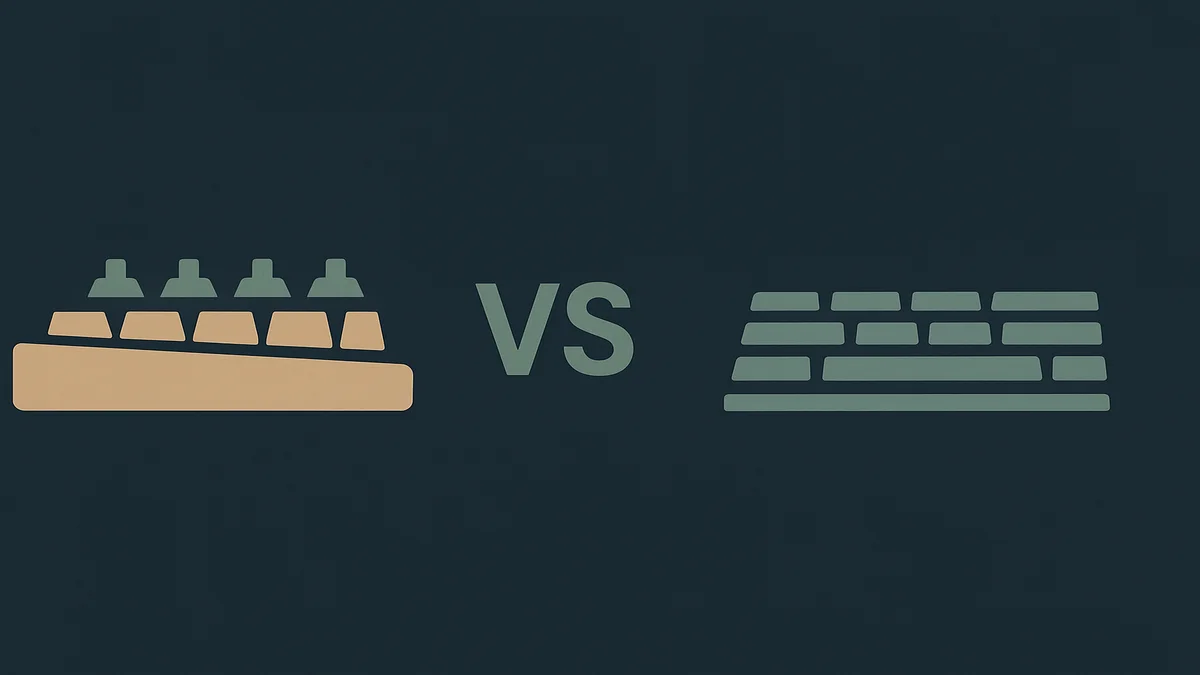
A membrane keyboard presses through a rubber dome onto one contact sheet; a mechanical keyboard uses an individual switch under every key. Mechanical lasts far longer and feels consistent; membrane is cheaper and quieter. For office work, mechanical suits all-day typists and membrane suits tight budgets and shared spaces.

The comparison is really about what is under the keycap. Membrane boards register a press through a rubber dome that collapses onto one printed circuit sheet, which is why they are inexpensive to make and why their feel degrades as domes soften. Mechanical boards give every key its own self-contained switch with a metal spring, so the feel stays consistent for years and a broken switch can be replaced individually. Everything else in this comparison (price, noise, longevity, typing feel) follows from that single structural difference.
For a mechanical vs membrane keyboard for work decision, the office context changes the weighting: noise tolerance, hours of daily use and who else can hear you matter more than they do in a gaming context.
Side-by-side feature comparison
Features
Membrane keyboards keep feature sets modest but practical: spill resistance is common because the flat sheet leaves fewer gaps for liquid, the boards are light enough to toss in a laptop bag, and full-size layouts with number pads cost almost nothing. Premium membrane and scissor-switch designs (like laptop keyboards scaled up) add better feel, backlighting and multi-device wireless.
Mechanical keyboards offer switch choice, which is the feature category that matters. CHERRY’s own guide describes the standard color families: MX Red is linear with a light 45 cN actuation, MX Brown is tactile with a detectable actuation point but no click and is the usual office choice, MX Blue is clicky and loud, and MX Black is a stiffer linear for accuracy. Silent variants (CHERRY MX Silent) add damping that softens the bottom-out noise. Beyond switches, mechanical boards add hot-swappable sockets on many models (swap switches without soldering), per-key or zoned backlighting, and rebuildable construction.
Pricing
Membrane boards are the cheapest input devices you can buy. A mainstream office standard like the Logitech K120 lists at $12.99 on Logitech’s US store at the time of writing, and even better-built scissor or premium membrane boards stay far below mechanical prices. Mechanical boards start where membrane tops out: Logitech’s low-profile MX Mechanical lists at $179.99 on Logitech’s site, and full-size hot-swappable boards from specialist vendors occupy the same band or higher. The gap has narrowed at the entry end (budget mechanical boards exist below $100), but verified-name-brand examples still cluster above $150. Verify current prices before buying; both categories run frequent promotions.
Workflow and ease of use
Membrane keyboards have no adjustment period and no decisions to make: plug in (or pair), type, done. For shared machines, hot desks and family computers, that universality is worth real money. Mechanical keyboards demand one decision up front (switch type) and a short adjustment if you move between switch families, and they reward the investment with feedback you can feel; touch typists generally settle faster than hunt-and-peck typists, in my observation, though that is judgment rather than sourced fact.
Noise is the office-critical workflow factor. Membrane boards are quiet by construction. Mechanical boards range from loud (clicky MX Blue, which CHERRY itself notes is not suited to open offices) to genuinely quiet (MX Silent and damped linears), but even quiet mechanicals have a deeper thock than membrane on hard keypresses. In a shared home office, that decides the answer more often than price does.
Specifications
The specs that separate the two: actuation force and travel feel (mechanical switches are specified in centinewtons and millimeters; membrane domes are not honestly specified at all), longevity (CHERRY guarantees MX switches beyond 50 million strokes; membrane domes usually soften visibly within a couple of years of heavy use), and rebuildability (mechanical switches and keycaps are replaceable parts; a membrane board is disposable once worn). For wireless variants, connection type and battery life matter in both categories and follow the same trade-offs.
Limitations
Mechanical limitations: price, weight (most travel badly), clicky variants are antisocial in shared spaces, and cheap mechanical boards exist that pair poor stabilizers with rattly keycaps, so brand matters more than in membrane. Membrane limitations: feel degrades with use and is not repairable, keys can ghost or feel mushy on the cheapest boards, and the low price invites buying them as throwaway hardware, which is a false economy for a full-time typist.
Pricing and value
Value depends on hours per day. If you type all day, the price gap between a $12.99 membrane board and a $179.99 mechanical one spreads over years of use, and the mechanical board’s repairability extends that further; the price-per-working-year math often favors mechanical for heavy users. If the keyboard is a secondary input (mostly calls and mouse work) or lives on a shared machine, membrane’s price wins outright and the difference is better spent elsewhere in the setup.
Replacement cycles belong in the value math too: a membrane board bought as a $12.99 commodity and replaced every couple of years quietly outspends one mechanical board across the same span, before counting the setup time of a new device. Long-run pricing, not sticker pricing, is the fair comparison for a daily input device.
There is also a value middle path worth naming: scissor-switch and low-profile mechanical hybrids blur the line. Logitech’s MX Mechanical is a low-profile mechanical aimed at office users, which shows the categories converging; the honest comparison is feel and longevity per dollar at your hours of use, not the label on the box.
Ease of use and workflow fit
Fit hinges on three daily realities. First, hours: the more of your day the keyboard owns, the more typing feel compounds into fatigue or comfort. Second, environment: a spare room with a closed door gives mechanical free rein, while a shared living space pushes toward quiet mechanicals or membrane. Third, maintenance appetite: mechanical boards reward a once-a-quarter cleaning and the occasional keycap or switch swap, and a sticky switch is a swap rather than a write-off; membrane boards ask nothing but deliver less each year, since a spill or a softened dome usually ends the board outright and its internals are not serviceable.
For remote workers on calls, keyboard noise matters when the microphone is close. If you type during calls (notes, chat while listening), test the board’s sound with your actual mic; a board that seems fine in a store can drum loudly through a laptop microphone. Quiet switch families or O-rings change this materially on mechanical boards.
Best for different use cases
Choose a mechanical keyboard when
- You type for most of your working day and care about feel and consistency over years.
- You work alone or in a room where moderate noise is acceptable, or you pick a silent/damped switch family.
- You want hardware that is repairable, with replaceable switches and keycaps rather than a disposable board.
- You are willing to spend $150 or more (verify current prices) for hardware that outlasts several membrane boards.
Choose a membrane keyboard when
- Budget is the binding constraint and the keyboard needs to work everywhere, including shared machines.
- You type in bursts around meetings and mouse-heavy work rather than in long sessions.
- You share the space (family room, thin walls, late-night work) and want the quietest option with zero fuss.
- You want maximum spill resistance and light weight for a travel bag.
Other alternatives worth knowing
Scissor-switch boards (the mechanism under most laptop keyboards, scaled to desktop) sit between the two: quieter than mechanical, more consistent than cheap membrane, and reasonably priced. Low-profile mechanicals bring switch feel in a slim chassis that office desks suit. If posture is your actual concern, neither type fixes it; that is ergonomic-split territory, covered in our keyboards hub and in the dedicated ergonomic keyboard guide.
Key limitations
Mechanical keyboards cost more up front, and the choice burden is real: picking the wrong switch family (a clicky board in a shared apartment, a heavy linear after years on light scissor keys) creates an adjustment period that sours the whole category for some buyers. They are also heavier and rarely spill-proof, and cheap models with rattly stabilizers give the category a bad name.
Membrane keyboards wear out in ways you feel before you see: softened domes, inconsistent actuation, and a mushy bottom-out that creeps in over a year or two of heavy use. There is no repair path; the board is disposable. For a full-time typist, the true cost of a membrane board is the replacement cycle, not the sticker price.
One honest note on the famous longevity number: CHERRY’s guarantee covers its MX switches beyond 50 million strokes, but switch longevity is not the only failure mode; keycaps, stabilizers and PCBs fail on cheap boards of both types. Longevity claims describe the switch, not the whole keyboard.
Which option should you choose?
For a full-time remote worker with a dedicated space, my default recommendation is mechanical with a tactile quiet switch family (MX Brown-class or a damped linear), bought once and maintained, because typing feel compounds over thousands of hours and the hardware is repairable. For shared spaces, tight budgets, or keyboard-as-second-input roles, a quality membrane or scissor board at a fraction of the price does the job and the saved budget goes further in a chair, monitor or desk upgrade.
If you buy mechanical, verify the switch family before buying, not after: the CHERRY guide’s color descriptions map directly to office suitability, and MX Blue-class clicky boards do not belong in rooms you share. If you buy membrane, buy one tier above the cheapest tier; the $12.99 board works, but a mid-range scissor board is where office feel starts.
For the wider comparison set, our keyboards hub lists the other keyboard guides, including the ergonomic-vs-standard and split-vs-regular comparisons, the home office hub covers how the keyboard fits the wider setup, and the mice guides cover the other half of your hands’ daily workload.
The one practical takeaway: choose by hours of daily typing and noise tolerance first, switch feel second, price third, because a keyboard is one of the few purchases you judge with every keystroke.
Frequently asked questions
Mechanical vs membrane keyboard for work?
For work, mechanical keyboards win on typing feel, consistency and longevity (CHERRY rates MX switches beyond 50 million actuations), which suits all-day typists, at higher prices and with switch-type noise considerations. Membrane keyboards win on price, quietness and universality, which suits shared machines and burst typists. The deciding factors are your daily typing hours and noise tolerance; heavy typists get value from mechanical, everyone else gets by comfortably on quality membrane or scissor boards.
How do I choose the right membrane vs mechanical keyboard office?
Count your daily typing hours and check your noise environment first. Four or more hours of typing in your own room points to mechanical with a tactile or damped linear switch; burst typing in shared space points to membrane or scissor. Shortlist by switch family rather than brand, verify current prices on vendor pages, and if buying mechanical, confirm the switch type in the product name or spec sheet, since the same model often ships in multiple switch variants.
What are the common mistakes with membrane vs mechanical keyboard office?
The most common is buying a clicky mechanical switch for a shared space and discovering the noise problem on day one. Others: judging mechanical keyboards by the cheapest rattly model, buying membrane as throwaway hardware for a full-time typing job, ignoring switch family when ordering (the same board often ships in several), and assuming the 50-million-stroke switch rating describes the whole keyboard rather than just the switch.
Sources used
- CHERRY, “CHERRY MX switches at a glance” (MX switch construction, 50-million-stroke guarantee, Red 45 cN / Brown 55 cN / Blue 60 cN / Black actuation characteristics, MX Silent damping, office suitability notes): https://www.cherry.de/en-gb/company/news/cherry-blog/article/cherry-mx-switches-at-a-glance
- Logitech, K120 product page (price $12.99 verified via page JSON-LD): https://www.logitech.com/en-us/shop/p/k120-usb-standard-computer
- Logitech, MX Mechanical product page (price $179.99 verified via page JSON-LD): https://www.logitech.com/en-us/shop/p/mx-mechanical
- Logitech, MX Keys S product page (price $129.99 verified via page JSON-LD): https://www.logitech.com/en-us/shop/p/mx-keys-s